Messaging setup & troubleshoot
This guide will help you connect your Facebook Page and Instagram Business Account so that you can manage conversations directly from the CRM.
TABLE OF CONTENTS
FB page messaging setup:
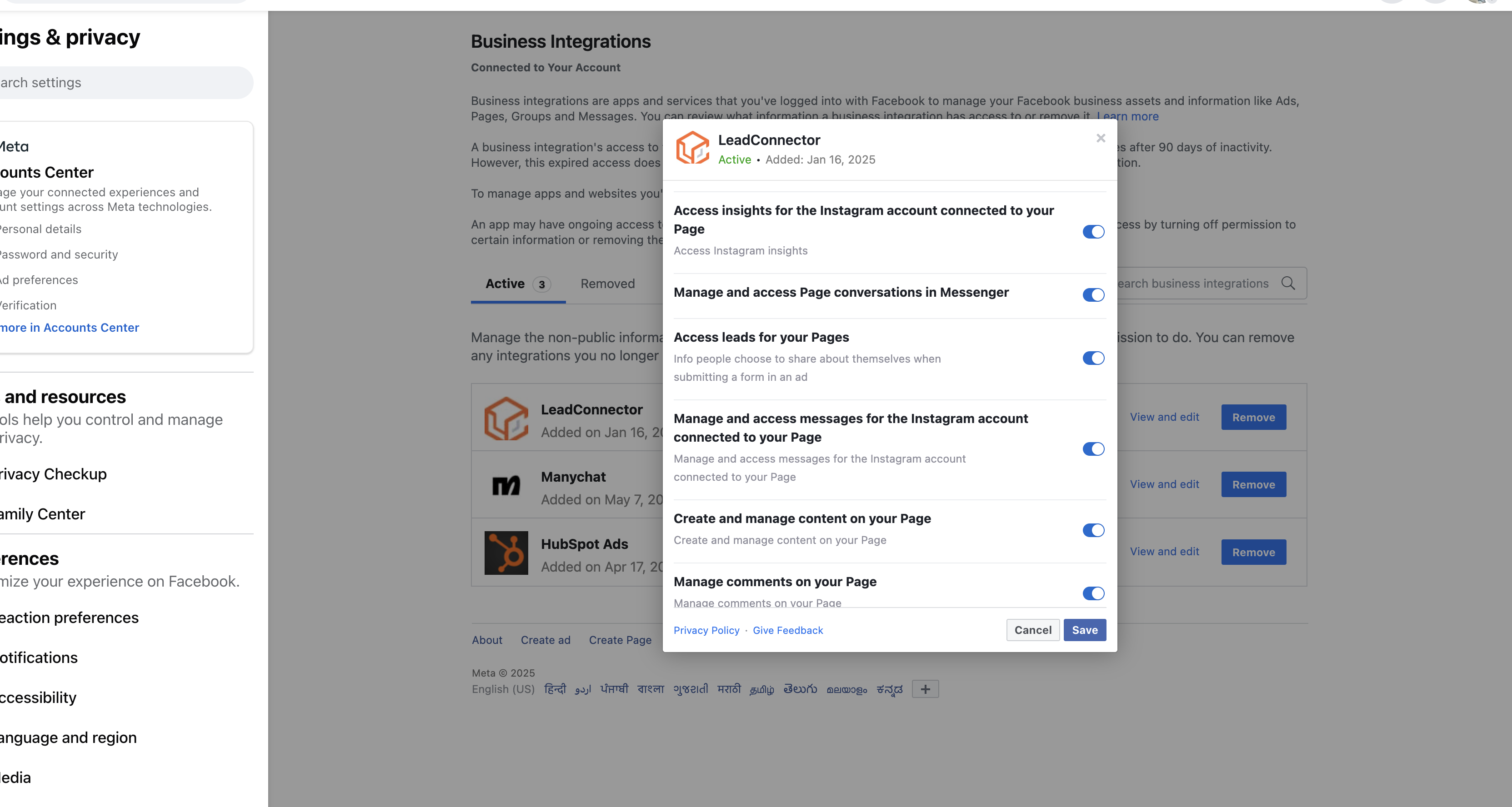
1. Leadconnector should have access to send message and access message for the page (https://www.facebook.com/settings?tab=business_tools&ref=settings)
2. User account should have full access to page and should have message access. ( Link: https://business.facebook.com/latest/settings)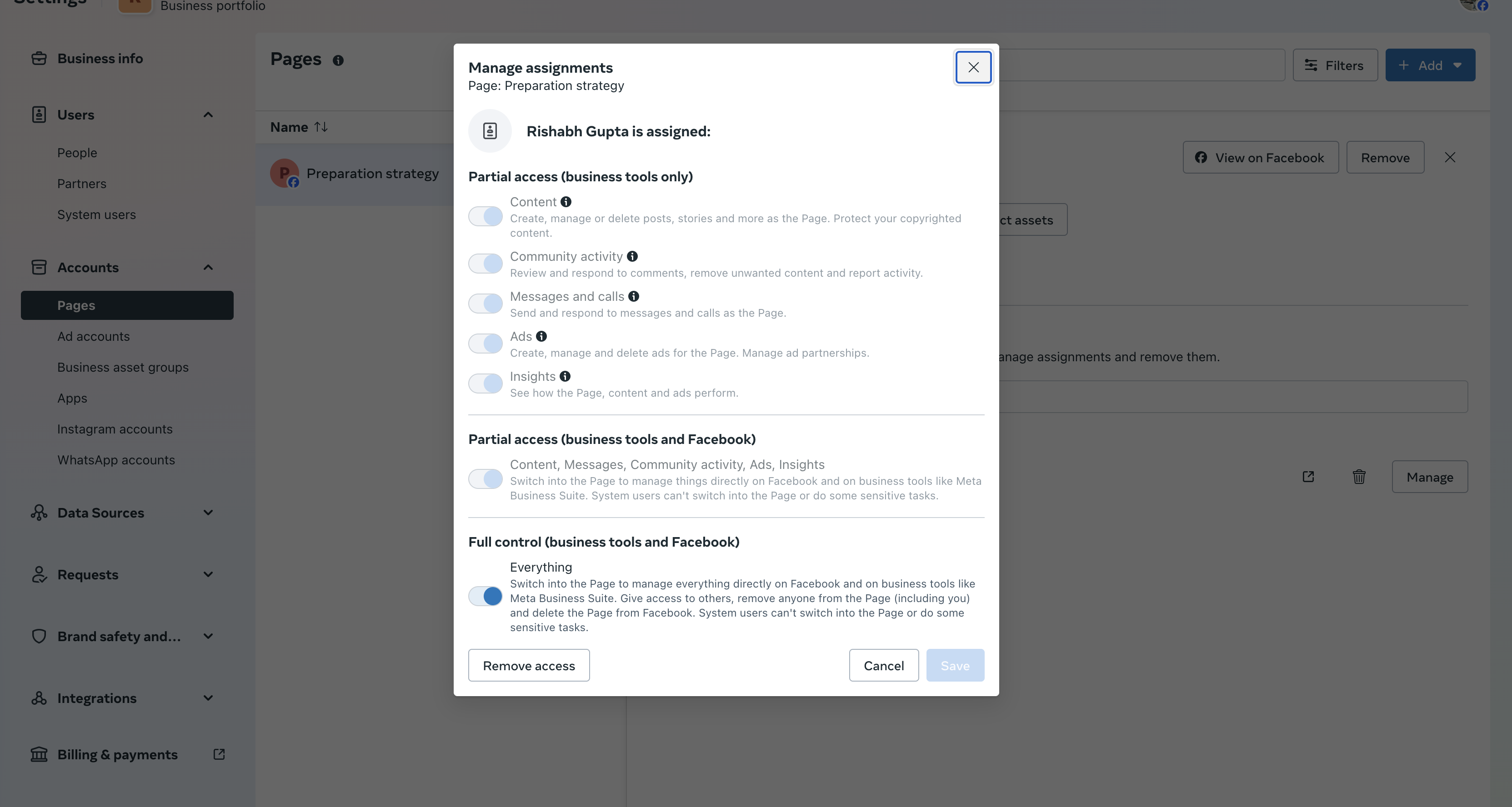
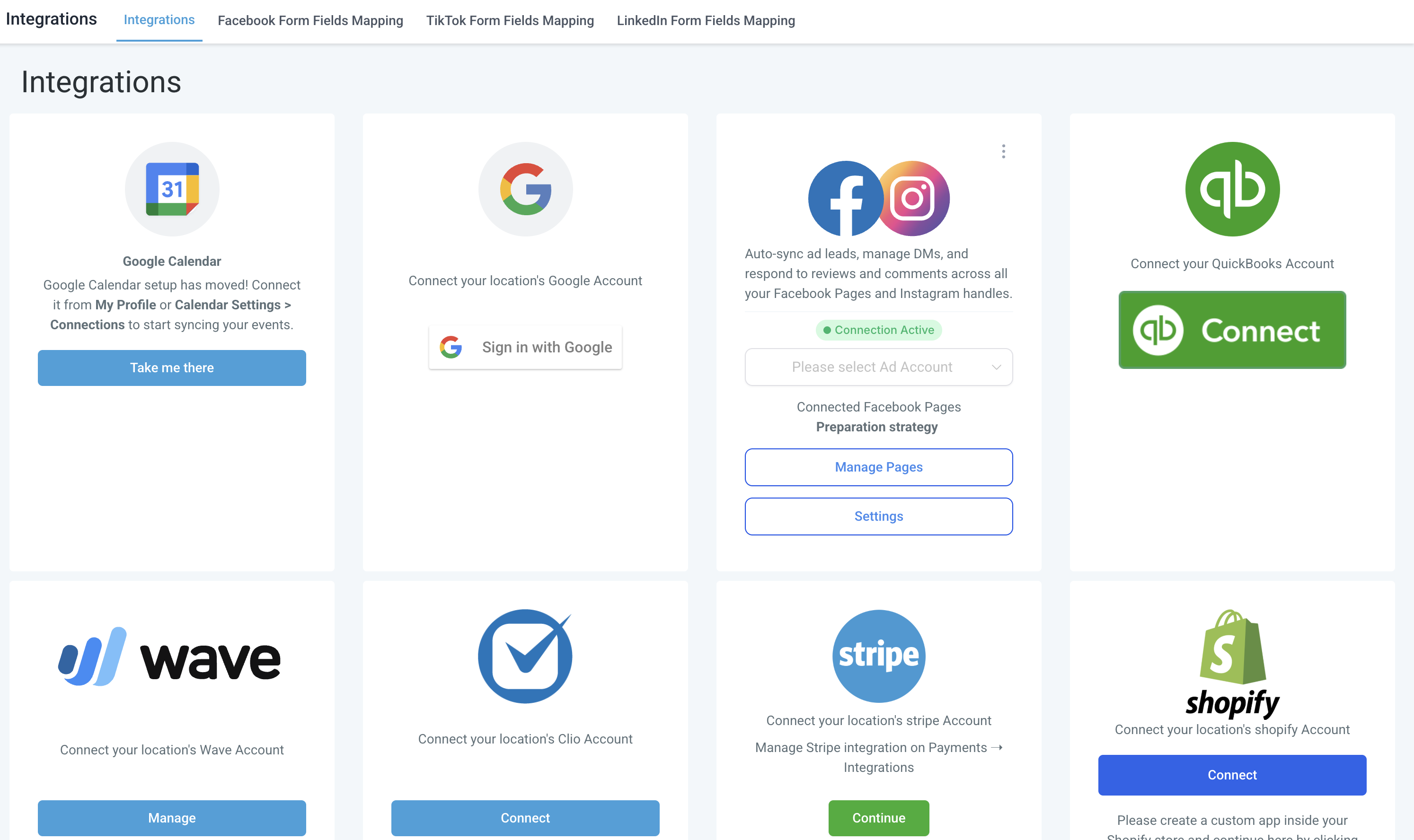
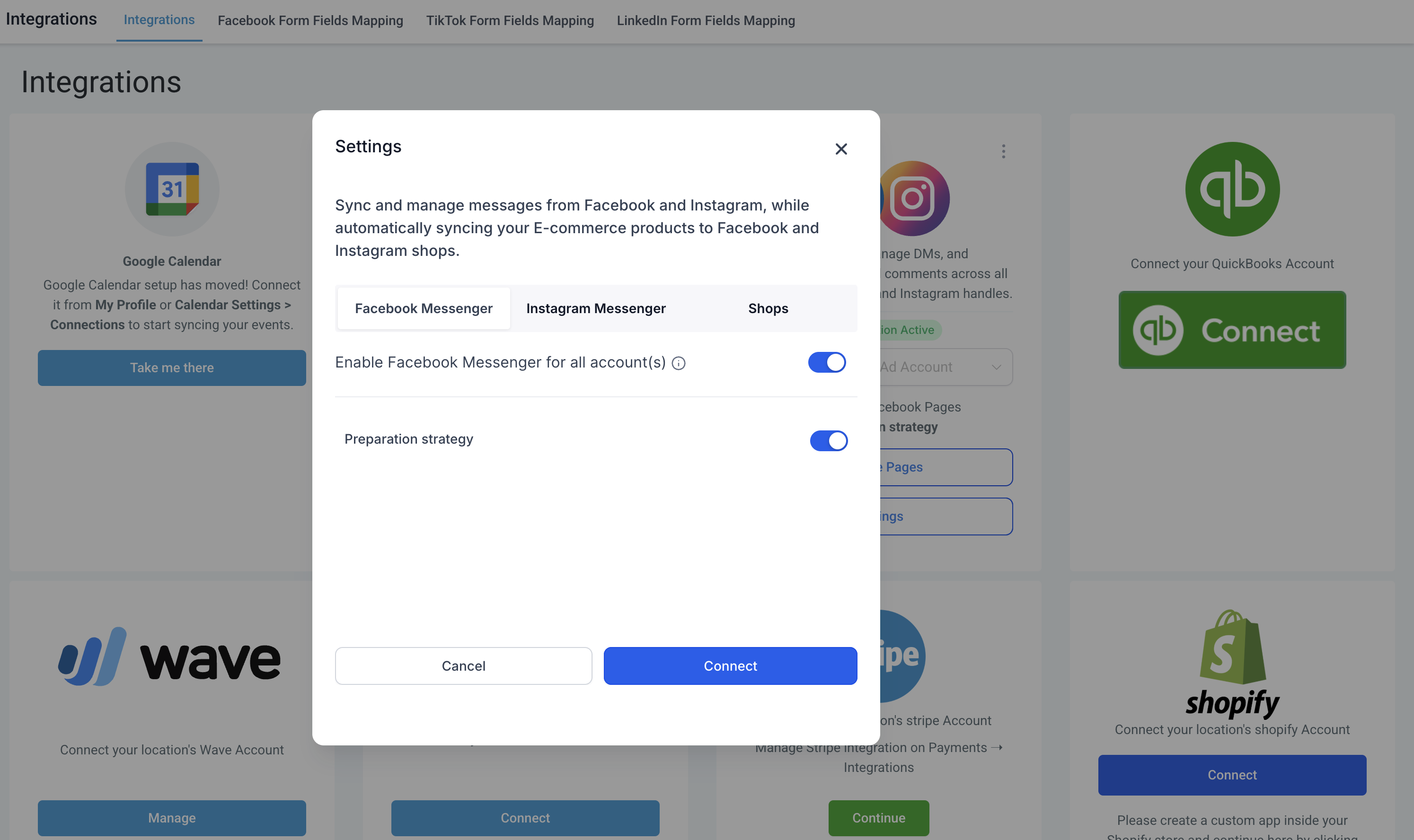
3. FB messenger should be enabled in Settings >> Integration >> Facebook card >> Settings
Instagram Messaging setup:
1. Leadconnector should have access to send message and access message for the page (https://www.facebook.com/settings?tab=business_tools&ref=settings)
2. Verify that you have access to send and receive message on instagram under instagram accounts ( https://business.facebook.com/latest/settings)
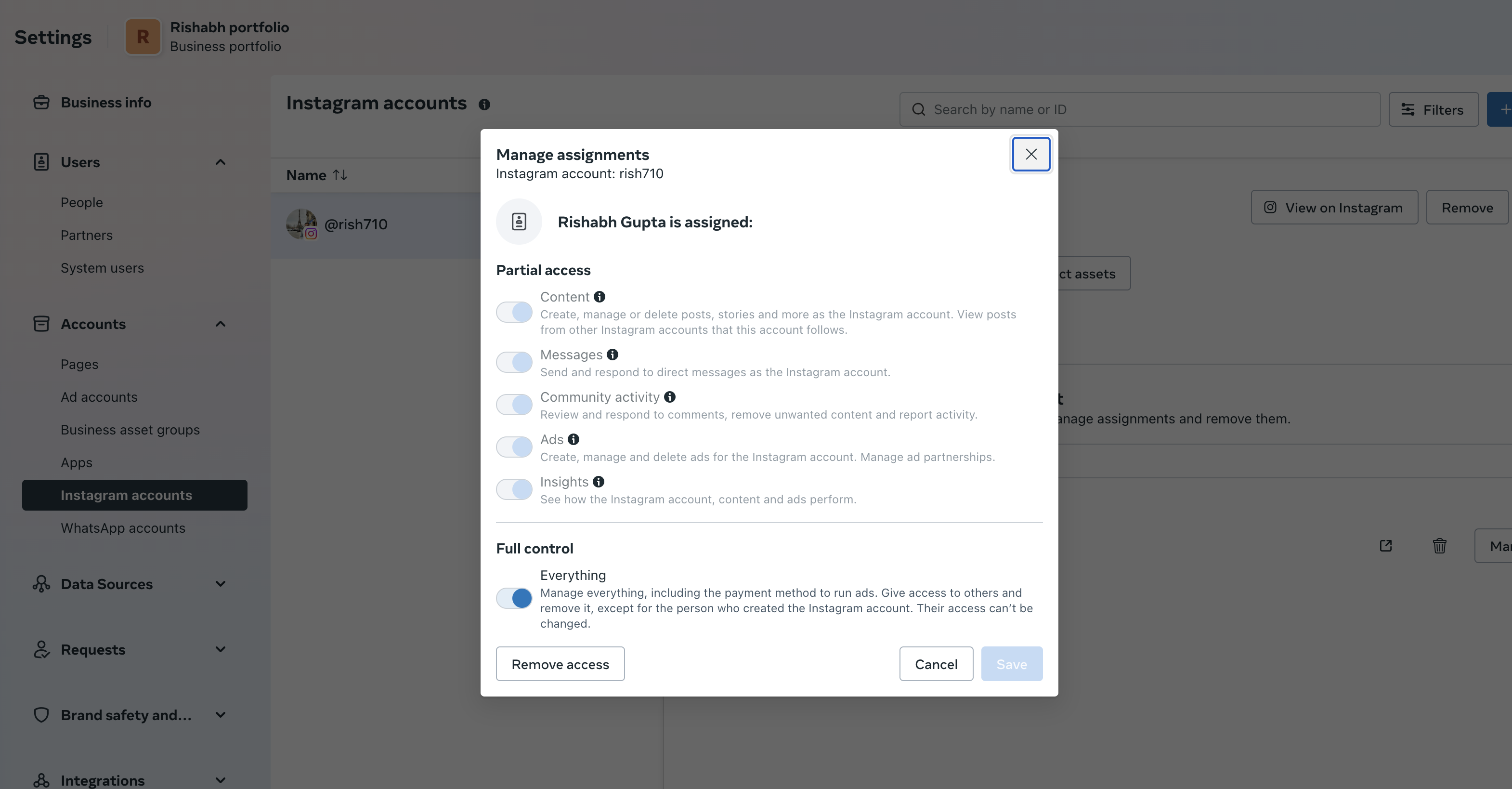
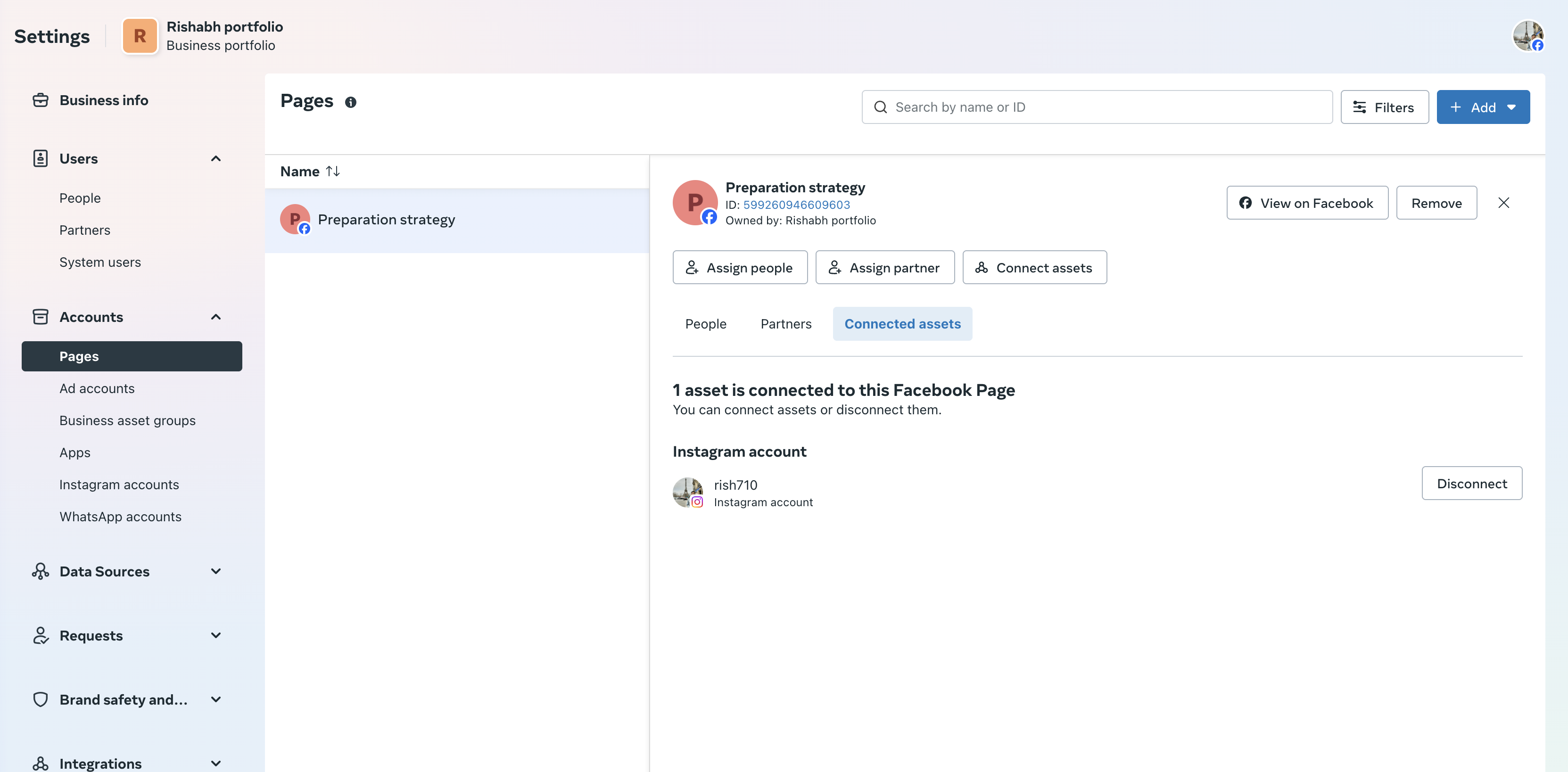
3. Verify instagram account is present in connected assets list in the page connected.
4. Instagram messaging is enabled in Settings >> Integration >> Facebook card >> Settings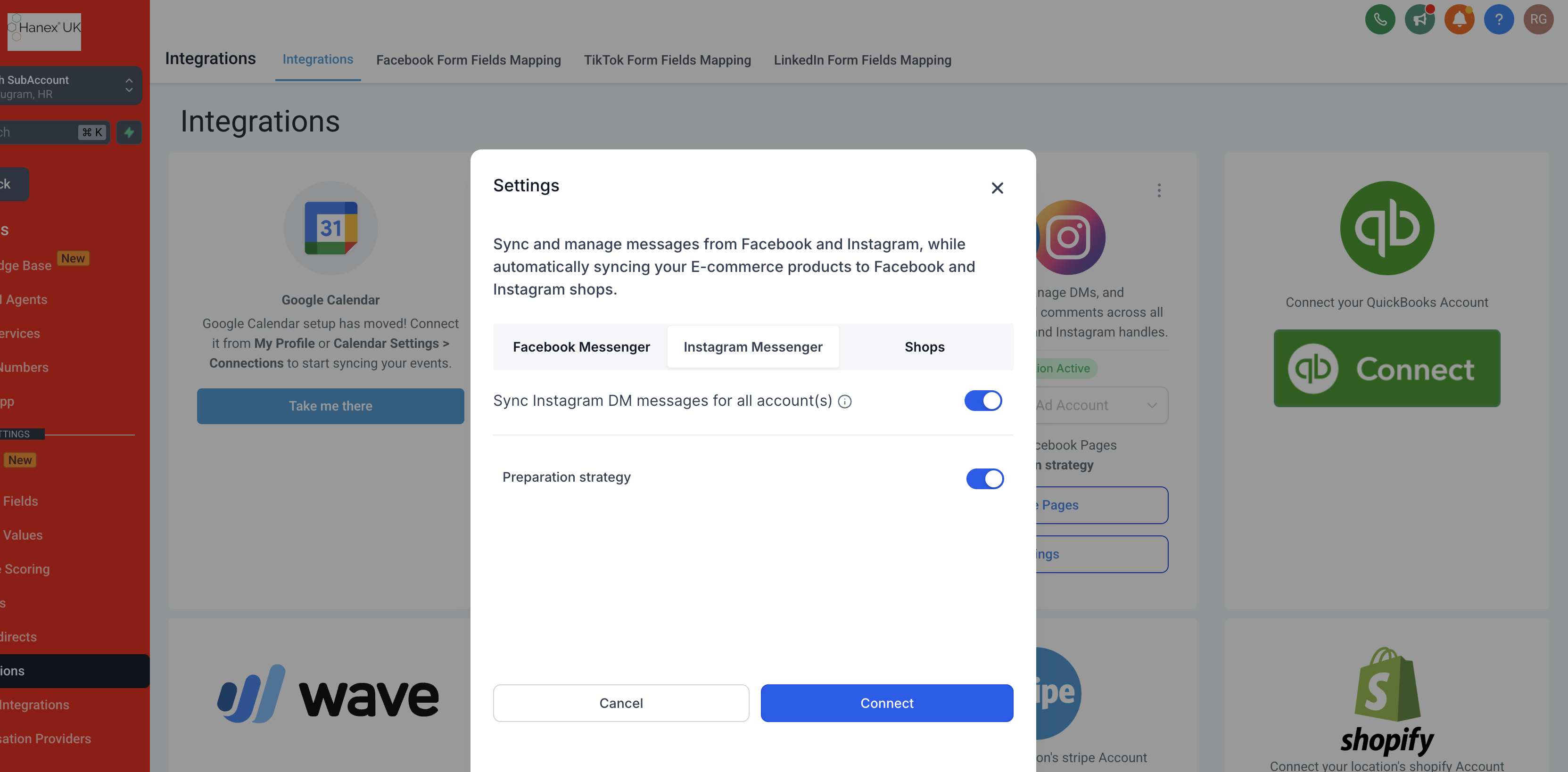
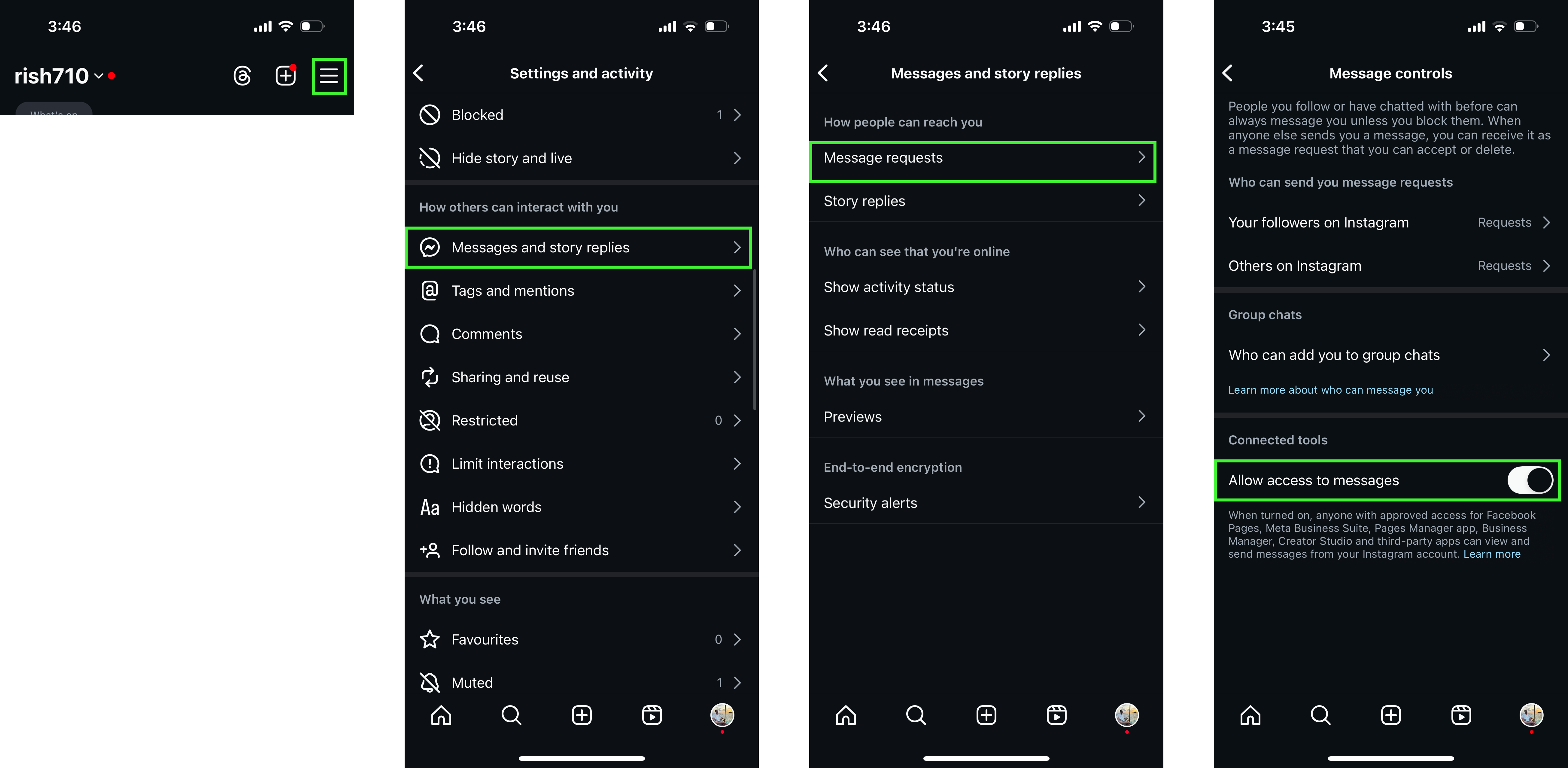
5. Also, confirm if connected tools have access over instagram messages. The below setting needs to be checked over instagram app:
- Login to Instagram App
- Go to settings and activity.
- Under Messages and Story reply, go to messages request.
- Allow access to connected tools
 Other facebook/instagram related support guides:
- Facebook Form mapping
- Facebook multi page Setup
- Facebook Page selection guide
- Facebook Multi page troubleshoot